Using Nodrya
A practical guide to capturing, organizing, protecting, sharing, and accessing your knowledge in Nodrya.
Quick FAQ
What is a Node?
A Node is Nodrya's name for an individual piece of knowledge. It can contain rich text or Markdown, metadata, attachments, links, and relationships to other Nodes.
Can Nodrya recover my encryption passphrase?
No. Node encryption happens in your browser and Nodrya does not keep a recovery copy of your passphrase. Losing it can permanently make encrypted content unreadable.
Can I use Nodrya offline?
Yes. Install the PWA and Nodes/categories you have loaded can be cached on that device. New Nodes and edits can queue while offline and synchronize after you reconnect. Wait for the Not backed up indicator to disappear before clearing browser data.
Can I share a Node with someone who does not have Nodrya?
Yes. Create a read-only share link. You can label it, set an expiration, revoke it, rotate it, and optionally protect shared encrypted content with a separate passphrase.
Can I collaborate with another Nodrya user?
Yes. Share to their full email address with read-only or edit permission. Editable shared Nodes use an advisory lock so two people do not intentionally edit the same Node at once.
Can I import my Obsidian or Markdown files?
Yes. Nodrya accepts supported archive formats and can turn folders into categories, Markdown files into Nodes, import common frontmatter, and bring referenced files in as private attachments.
Can I create a Node by email?
Yes, when Email to Node is enabled. Configure your personal Node address and accepted senders in Settings. The email subject becomes the Node title and the message body becomes its content.
Are AI and connected-knowledge features available?
Yes. Nodrya includes scored keywords, optional AI expansion and summaries, Smart AI Tagging, explainable related-Node recommendations, an interactive Mind Map, and a paid-plan AI connector (MCP).
Nodes and editors
Create a Node with the + button on the dashboard. Nodrya lets you choose the editing experience that best fits the task.
Write
The rich editor is the easiest way to compose formatted Nodes without working directly with Markdown syntax.
Markdown
Edit the Markdown source directly when you want precise control or already work in Markdown.
Preview
See the rendered result of your Markdown without editing it.
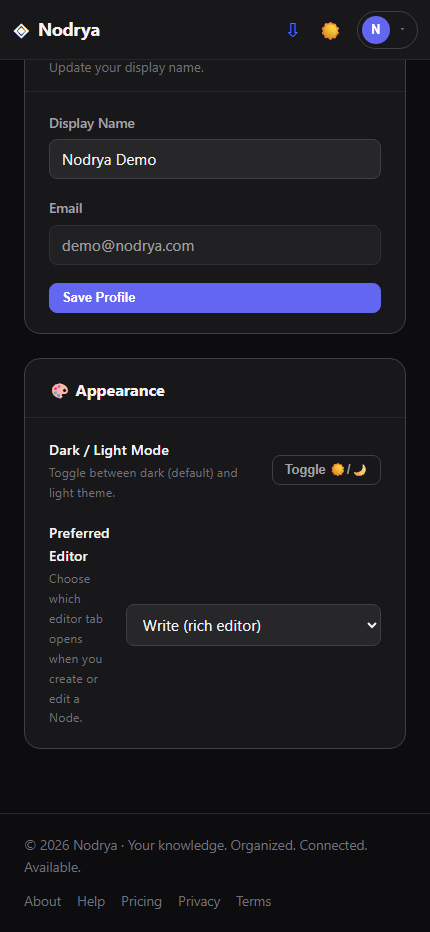
Preferred editor
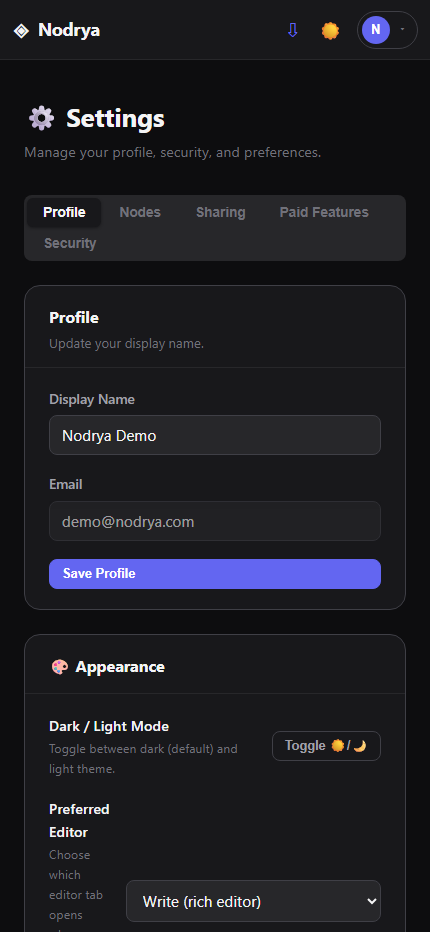
Choose which editor opens by default under Settings → Appearance → Preferred Editor.
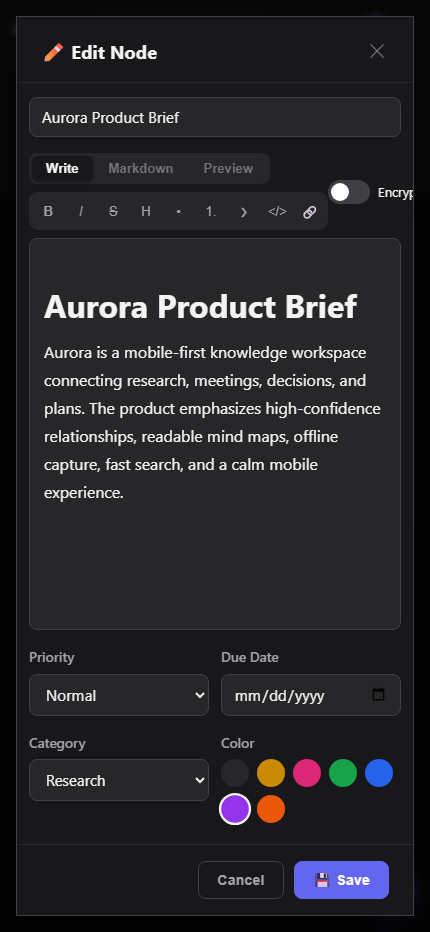
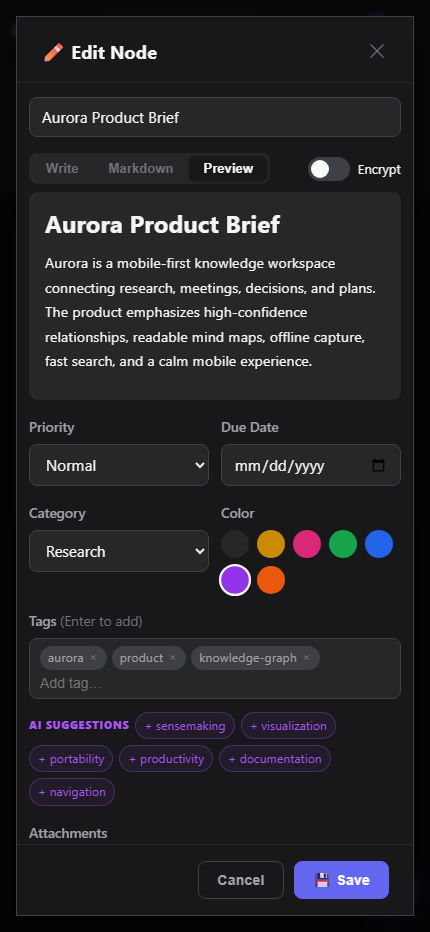
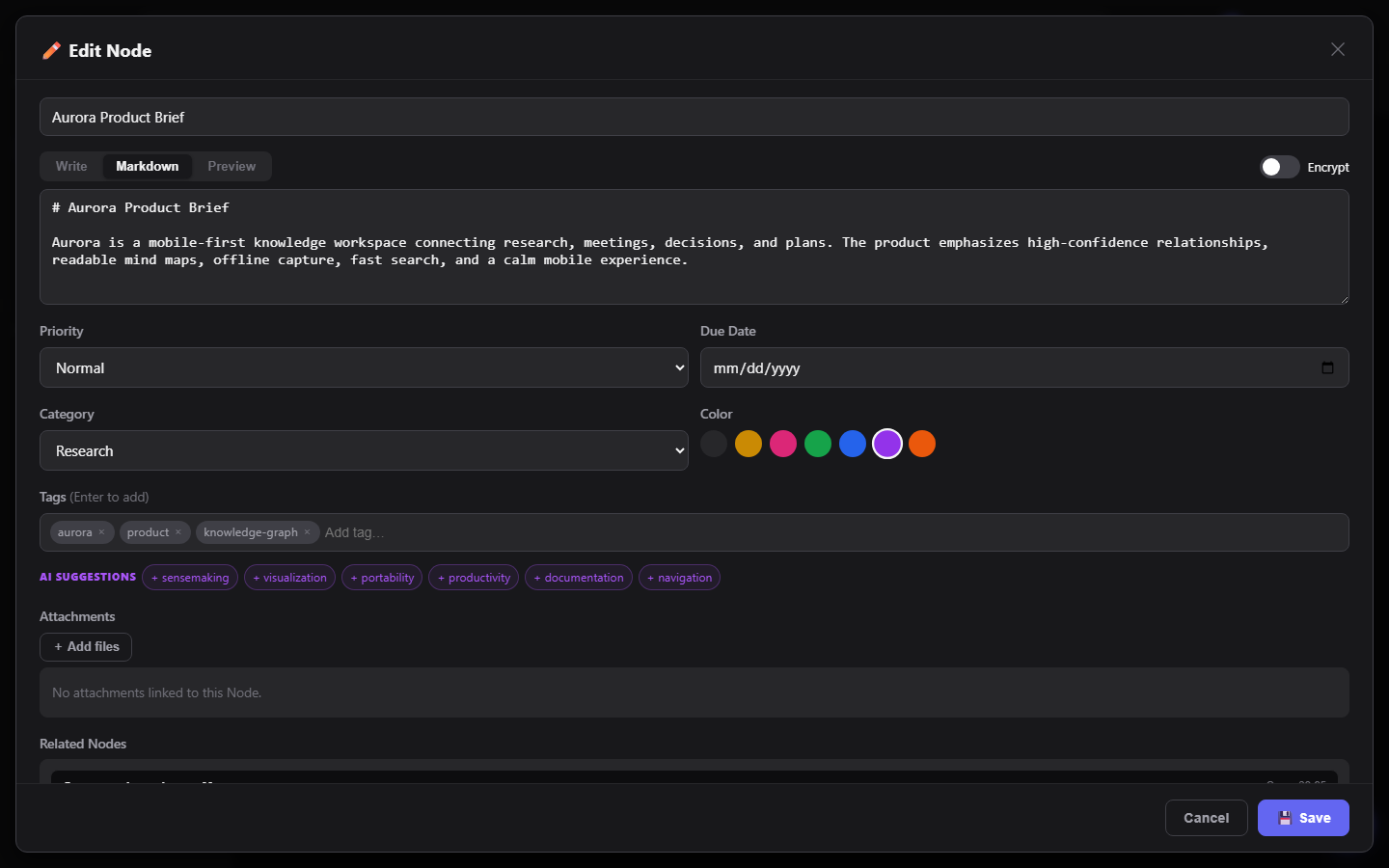
Nodes can also include a category, tags, priority, due date, color, attachments, and optional encryption. Archive finished material you still want to retain; use Trash for Nodes you intend to remove.
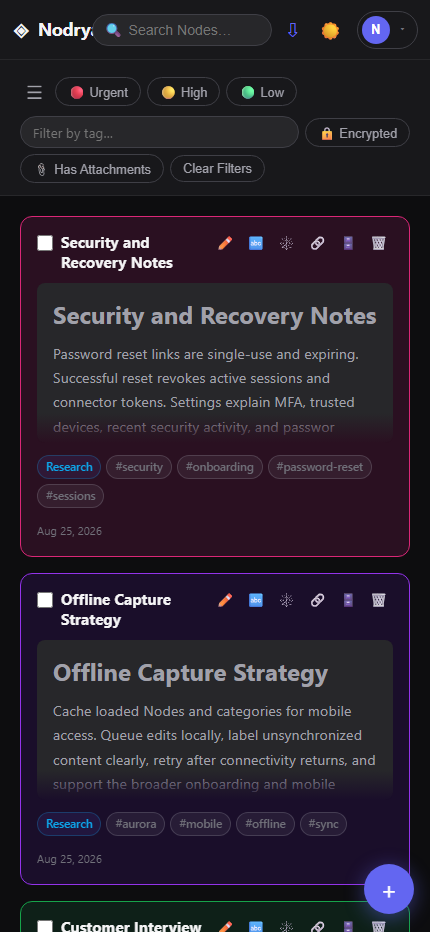
Categories, tags, search, and bulk actions
Nested categories
Create categories and subcategories from the sidebar. Manage Categories lets you rename, recolor, re-parent, bulk move, bulk recolor, or delete them.
Tags and filters
Filter by tag, priority, encrypted status, or whether a Node has attachments. Use the main search to find Nodes by their content and title.
Archive and Trash
Archived and trashed Nodes have dedicated dashboard views. Trashed Nodes can be restored or permanently deleted.
Bulk actions
Select multiple visible Nodes to trash, archive, restore, permanently delete, change priority, or apply tags in one operation.
Keywords, AI tags, and related Nodes
Scored keywords
Nodrya extracts deterministic keywords from unencrypted Node text. Open the keyword view to inspect scores and optionally request AI-expanded terms and a summary.
Smart AI Tagging
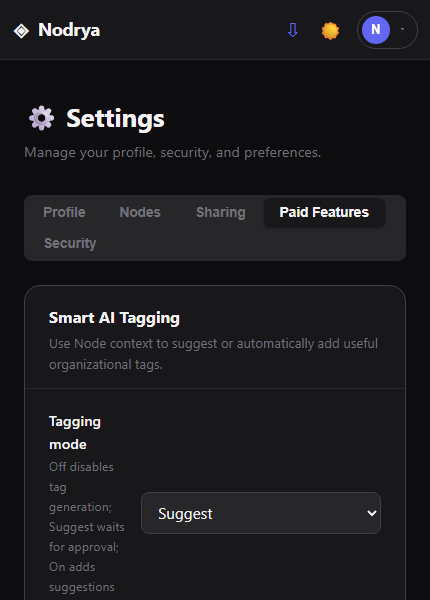
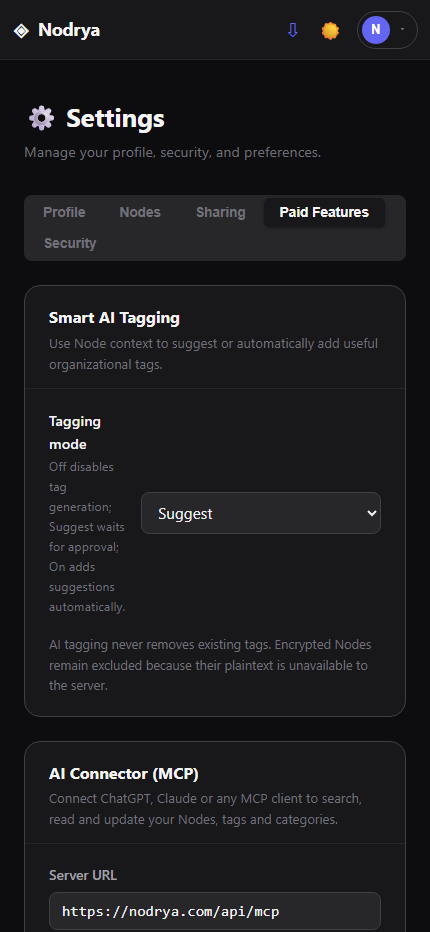
Eligible accounts can turn Smart AI Tagging off, receive suggestions for review, or allow background suggestions to be applied automatically. Encrypted Node content is never sent for server-side tagging.
Related Nodes
Recommendations require multiple matching signals and show why Nodes appear related. Scores use deterministic and AI-expanded keyword overlap; recommendations remain scoped to the Node owner.
Mind Map
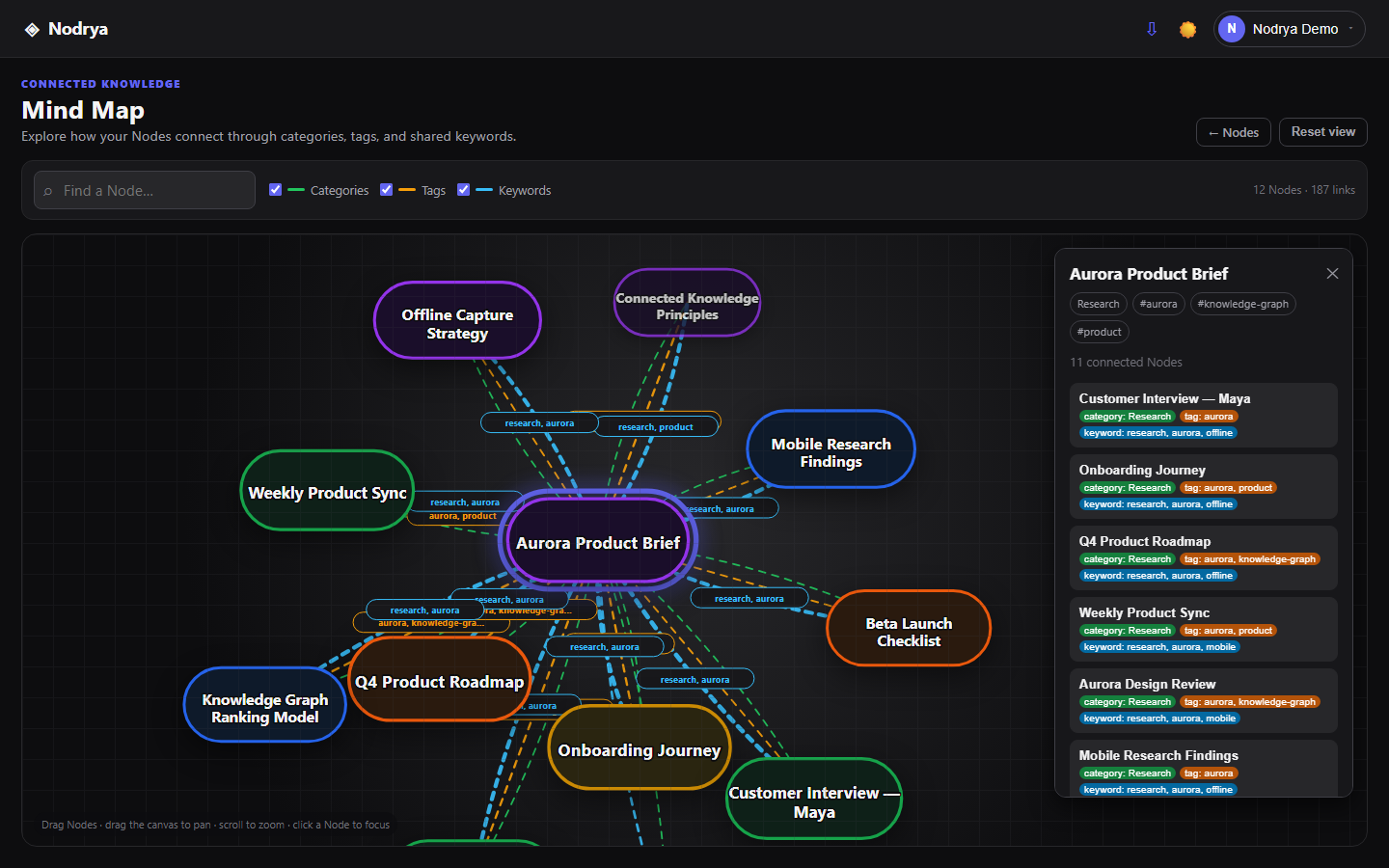
The Mind Map makes these connections explorable as an interactive visual network. Clustering and feedback on suggested connections remain later roadmap items.
Using the Mind Map
Open Mind Map from the account menu. Each bubble contains the Node title and uses the color selected in that Node's editor. Relationship lines display the matching terms: green links represent a shared category, amber links represent shared tags, and blue links represent shared keywords.
Explore
Drag Nodes to rearrange them, drag empty canvas space to pan, and use the mouse wheel or trackpad to zoom.
Focus and direct links
Click a Node to center it and show its immediate neighborhood. The address updates to a direct link you can bookmark. Dashboard cards and the full Node viewer also link directly to that focused view. The inspector explains which categories, tags, or keywords created each relationship.
Search and filter
Search by title or tag, and switch category, tag, or keyword links on and off independently. Reset view returns to the complete graph.
Privacy and scale
The map uses metadata for your own active Nodes and never sends Node content to the browser graph API. Large workspaces are bounded to the newest configured number of Nodes and strongest relationships.
Attachments
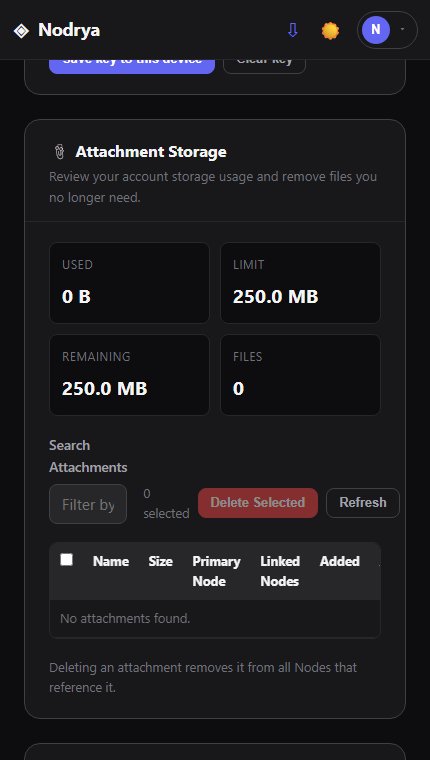
Attachments are private account resources served through authenticated Nodrya routes. They can be associated with Nodes and are subject to your account's storage quota.
Open Settings → Attachment Storage to see used, remaining, and total storage, search files, see which Nodes reference them, and delete files you no longer need. Deleting an attachment removes it from every Node that references it.
Importing Markdown and Obsidian archives
- Choose the Import option from the dashboard.
- Select a supported
.zip,.tar,.tar.gz,.tgz, or.gzarchive. - Nodrya can turn folders into nested categories and Markdown files into Nodes.
- Common frontmatter such as title, tags, category, priority, due dates, and date metadata can be imported.
- Referenced non-Markdown files may be imported as private attachments and common Obsidian-style references can be rewritten.
Email to Node
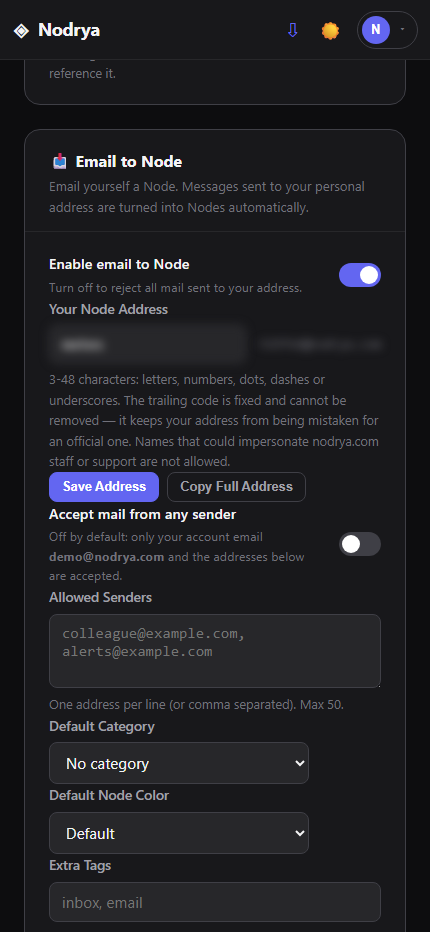
When enabled on the service, each account can configure a personal Nodrya Node address under Settings → Email to Node.
What becomes the Node?
The email subject becomes the title. Nodrya uses the plain-text body, falling back to a simplified HTML body when necessary. Email attachments are currently ignored.
Automatic tags
Emailed Nodes receive ViaEmail. Mail from an address other than your account email also receives a sender-address tag.
Control senders
By default, only your registered account email is accepted. Add specific allowed senders or explicitly enable mail from any sender.
Set defaults
Choose a default category, Node color, and extra tags for Nodes created through email. Recent accepted and rejected messages appear in the activity table.
Sharing and collaboration
Read-only links
Use the Share action on a dashboard card or in the full Node viewer to create an unguessable link for someone who only needs to read the Node. Links can have labels and expirations and can later be revoked, restored, rotated, or deleted.
Share with an account
Enter the recipient's full email address and choose Read only or Can edit. Nodrya does not expose an account directory or confirm whether an address is registered.
Shared with me
Nodes another account shares with you appear under Shared with me. Collaborators can edit title/content when permitted; ownership and organizational controls remain with the owner.
Manage access
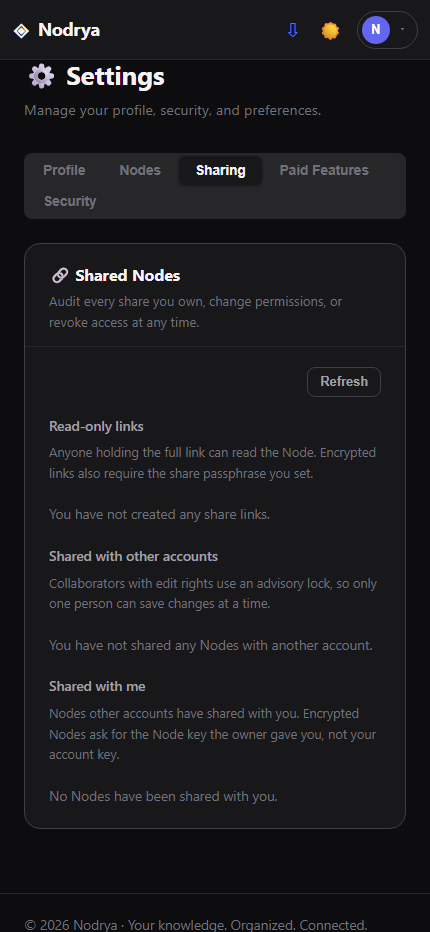
Settings → Shared Nodes provides an audit view of link shares, account shares, permissions, expiration, activity, and Nodes shared with you.
AI connector (MCP)
The Model Context Protocol (MCP) connector lets an AI assistant use your Nodrya Nodes as long-term memory. Once connected, the assistant can search your Nodes, read them, and—if you allow it—create and update Nodes, tags, and categories.
Step 1: create a connector token
- Open Settings → AI Connector (MCP).
- Give the token a name that identifies the client, such as ChatGPT or Claude Desktop.
- Choose the permissions:
- Read only — the assistant can search and read Nodes. Best for most uses.
- Read and write — the assistant can also create, update, archive, and trash Nodes and manage tags and categories.
- Optionally choose an expiration. Shorter lifetimes are safer.
- Select Create Token, then copy the connector URL immediately. It is shown only once.
Step 2: connect your assistant
Nodrya supports the two standard ways to authenticate, so you can use whichever your client offers.
Connector URL
Paste the full connector URL you copied. Use this when the client only asks for a server URL and cannot add custom headers. The token is part of the URL.
Server URL plus token
Use the Server URL shown in Settings and supply the token as an Authorization: Bearer header. Preferred when the client supports headers, because the token stays out of the URL.
In ChatGPT, add Nodrya as a custom connector and provide the URL. In Claude and other MCP clients, add it as a remote (HTTP) MCP server. After connecting, the client lists the available Nodrya tools; confirm they appear before relying on it.
Step 3: use it
Ask the assistant to work with your Nodes in plain language. For example:
Recall
“Search my Nodrya Nodes for what I decided about the database migration.”
Summarize
“Summarize my Nodes tagged project-alpha that changed in the last two weeks.”
Capture
“Save this as a new Node in my Meetings category, tagged standup, with high priority.”
Maintain
“Append these action items to my Q3 planning Node and set its due date to the end of the month.”
The assistant can see and use your Node metadata: title, content, category, tags, priority, color, due date, aliases, archive and trash state, created and updated times, attachments, outgoing links, and backlinks. Capture and maintenance requests require a read/write token.
Privacy and safety
Encrypted Nodes stay private
Nodes you encrypted in the browser are listed with their metadata, but their content is never sent through the connector and cannot be changed by an assistant, because Nodrya's server has no decryption key.
Your data leaves Nodrya
Anything the assistant reads is processed by that AI provider under their terms. Use a read-only token, and avoid connecting accounts holding sensitive material you do not want processed externally.
Scoped to one account
Each token belongs to a single account and can only reach that account's own Nodes. Nodes shared with you by other accounts are not exposed.
Revoke anytime
Settings lists every token with its last-used time. Select Revoke to cut off a client immediately. Create separate tokens per client so you can revoke one without disturbing the others.
Connector troubleshooting
Unauthorized or invalid token
The token was mistyped, revoked, or expired. Check the token list in Settings and create a new token if needed.
Upgrade required
The account is on the free plan, or a paid plan ended. Existing tokens stop working until the account is on a paid plan again.
The assistant cannot save
The token is read-only. Create a read/write token and reconnect the client.
A Node's content looks empty
That Node is end-to-end encrypted. Open it in Nodrya to read or edit its content.
Installable app and offline work
Nodrya is a Progressive Web App and can be installed from supported browsers. The installed app can cache Nodes and categories that have already been loaded.
When you create or edit a Node offline, Nodrya stores the change on that device and queues it for synchronization. Pending Nodes show an amber border and Not backed up until synchronization succeeds.
Encrypting Nodes
Optional Node encryption uses AES-256-GCM in your browser. Your encryption passphrase is not sent to Nodrya's server.
Account-wide key
You can save a convenience key on the current device. It is stored in that browser's local storage and can automatically encrypt/decrypt Nodes using that key.
Encrypted by default
Settings can make new Nodes encrypted by default. Server-side features that require plaintext content cannot process those encrypted Nodes.
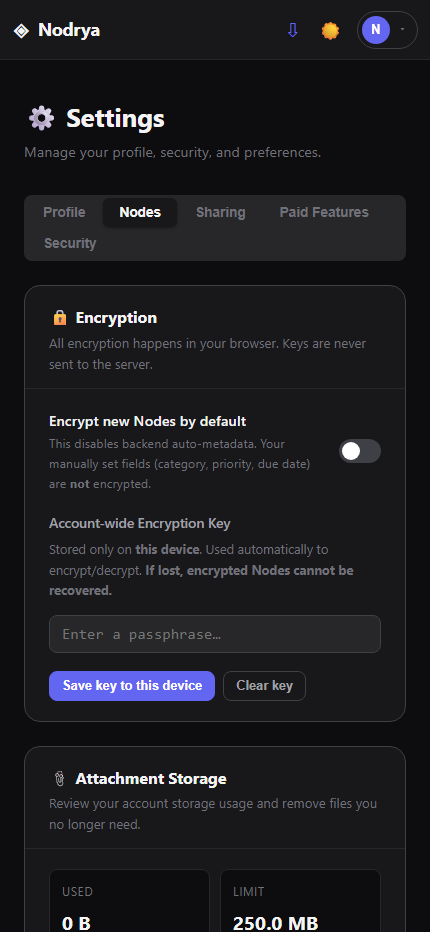
Organizational metadata such as category, tags, priority and due date is not necessarily encrypted. Encrypted sharing also requires special handling: link shares can use a separate share passphrase, while collaborative encrypted Nodes use the Node passphrase shared out of band.
Security and account management
Two-factor authentication
Enable TOTP MFA in Settings using a compatible authenticator app. Setup provides both a QR code and provisioning information.
Password reset
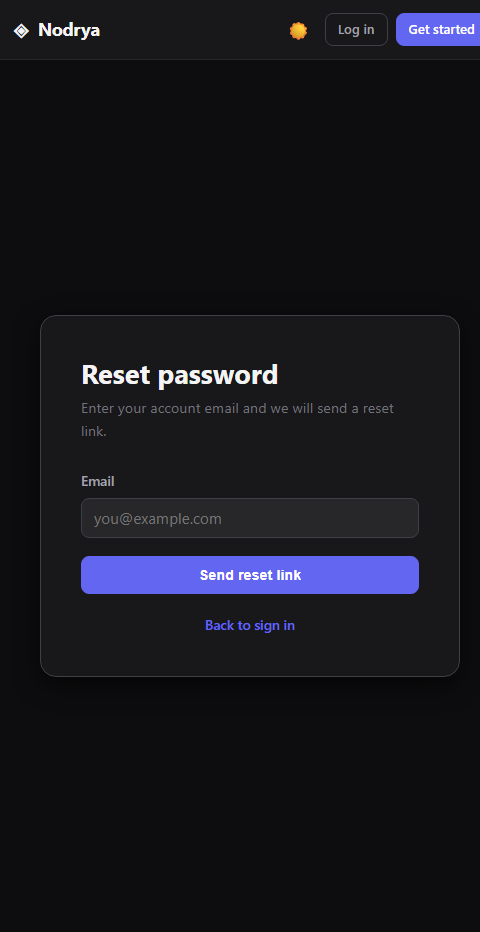
Use Forgot password from the login page for a single-use, expiring reset link. This resets the account password only—not Node encryption passphrases. A reset revokes existing sessions.
Sessions and activity
Settings identifies the current device, lists active and trusted sessions, allows individual or all-other-session revocation, and shows recent security activity. Changing your password signs out other devices and revokes MCP tokens.
Delete account
Account deletion is available in Settings and should be treated as permanent. Preserve anything you need before deleting the account.
Troubleshooting
A Node says “Not backed up”
Reconnect to the internet and leave Nodrya open long enough for the queued change to synchronize. Do not clear site data while the indicator remains.
I cannot edit a shared Node
You may have read-only permission, or another collaborator may currently hold the edit lock. The editor identifies the lock state when applicable.
An emailed Node did not arrive
Check Email to Node activity in Settings. Confirm the feature is enabled and that the sender is your account email, on your allowed list, or permitted by the “any sender” setting.
I cannot decrypt a Node
Confirm you are using the same passphrase that encrypted it. A saved account key exists only in the browser/device where you saved it unless you manually use the same key elsewhere.
Still stuck? Email support@nodrya.com with what you were trying to do, the approximate time, browser/device, and any error message shown. Never send passwords, encryption passphrases, MFA secrets, or password-reset links.